1.1 Splash Screen (Brand Cover) Controls
When you open the catalogue from the tablet Home Screen, you start on the Pharmafusion Official Brand Cover:
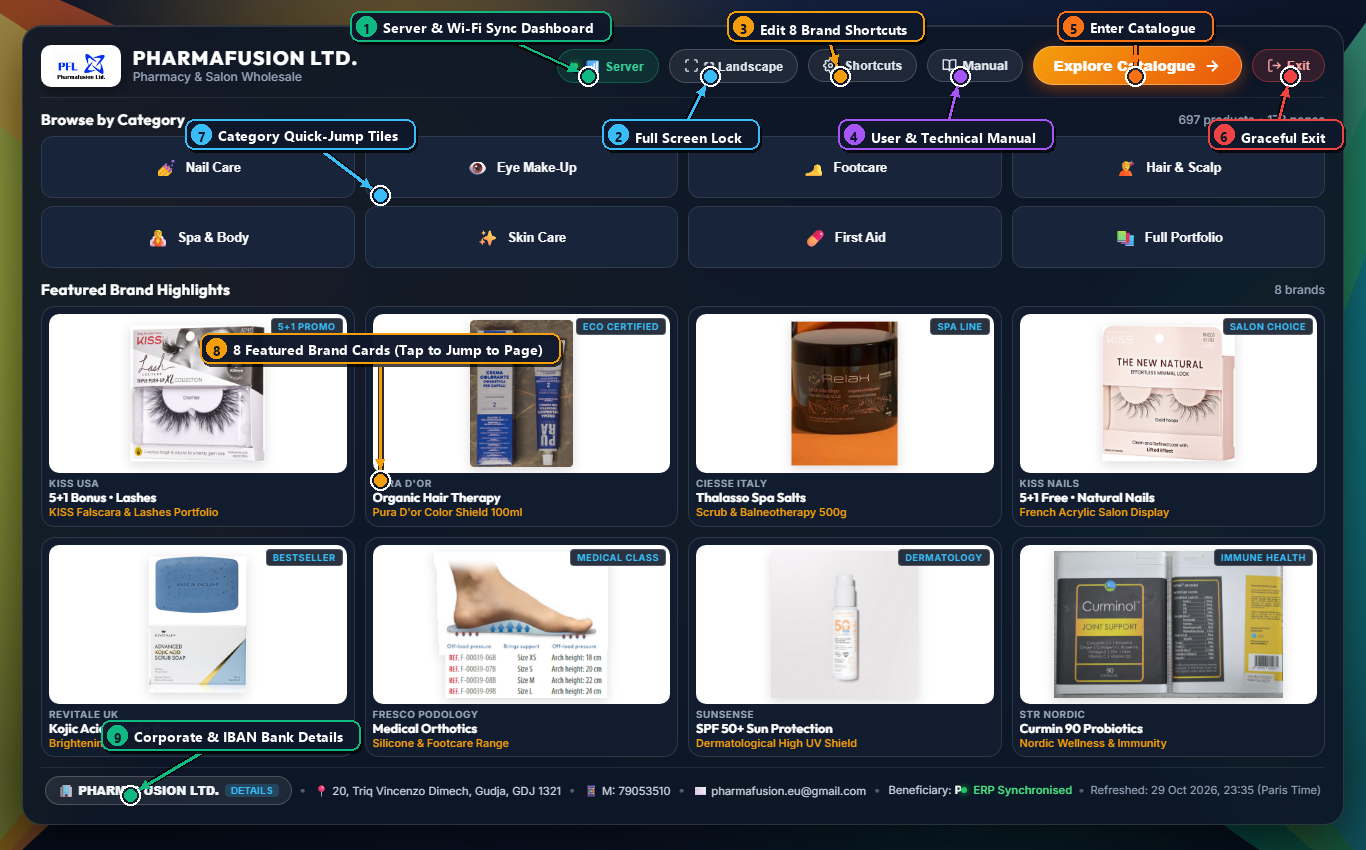
| Callout | Control / Button | Function & Hidden Tips |
|---|---|---|
| 1 | 📶 Server | Opens the Home Server & Wi-Fi Sync Dashboard to test connection speed (⚡ Ping) and run 1-Click Wi-Fi Sync Now before leaving home. |
| 2 | ⛶ Landscape | Locks the tablet into edge-to-edge Full Screen Presentation Mode (hiding Android/iOS browser bars). |
| 3 | ⚙️ Shortcuts | Customises the 8 Featured Brand Cards on the Splash Screen (change title, subtitle, target page, or packshot image). |
| 4 | 📖 Manual | Opens this Visual User & Technical Manual (and its downloadable PDF) directly from the tablet Splash Screen, 100% offline. |
| 5 | Explore Catalogue ➔ | Enters the interactive catalogue at Page 1. |
| 6 | 🚪 Exit | Gracefully exits Full Screen mode and closes the catalogue window. |
| 7 | Category Quick-Jump Tiles | Tap any category tile (Nail Care, Eye Make-Up, Footcare, Hair & Scalp, Spa & Body, Skin Care, First Aid) to open the catalogue filtered to that category. |
| 8 | 8 Featured Brand Cards | One-tap shortcuts to your 8 flagship brand lines (KISS Lashes, Pura Hair Dye, Ciesse Spa, KISS Nails, Revitale, Fresco Footcare, SunSense, STR Nordic). |
| 9 | 🏢 Pharmafusion Ltd. Details | Opens the Corporate & Banking Details modal (VAT No., Reg No., and BOV IBAN with 1-Click Copy IBAN). |
1.2 Main 50/50 Presentation Stage & 2× Scrollable Salon Shade Palette
Inside the catalogue, the screen is split 50/50 between the Visual Studio Stage (left) and the Commercial Table (right):
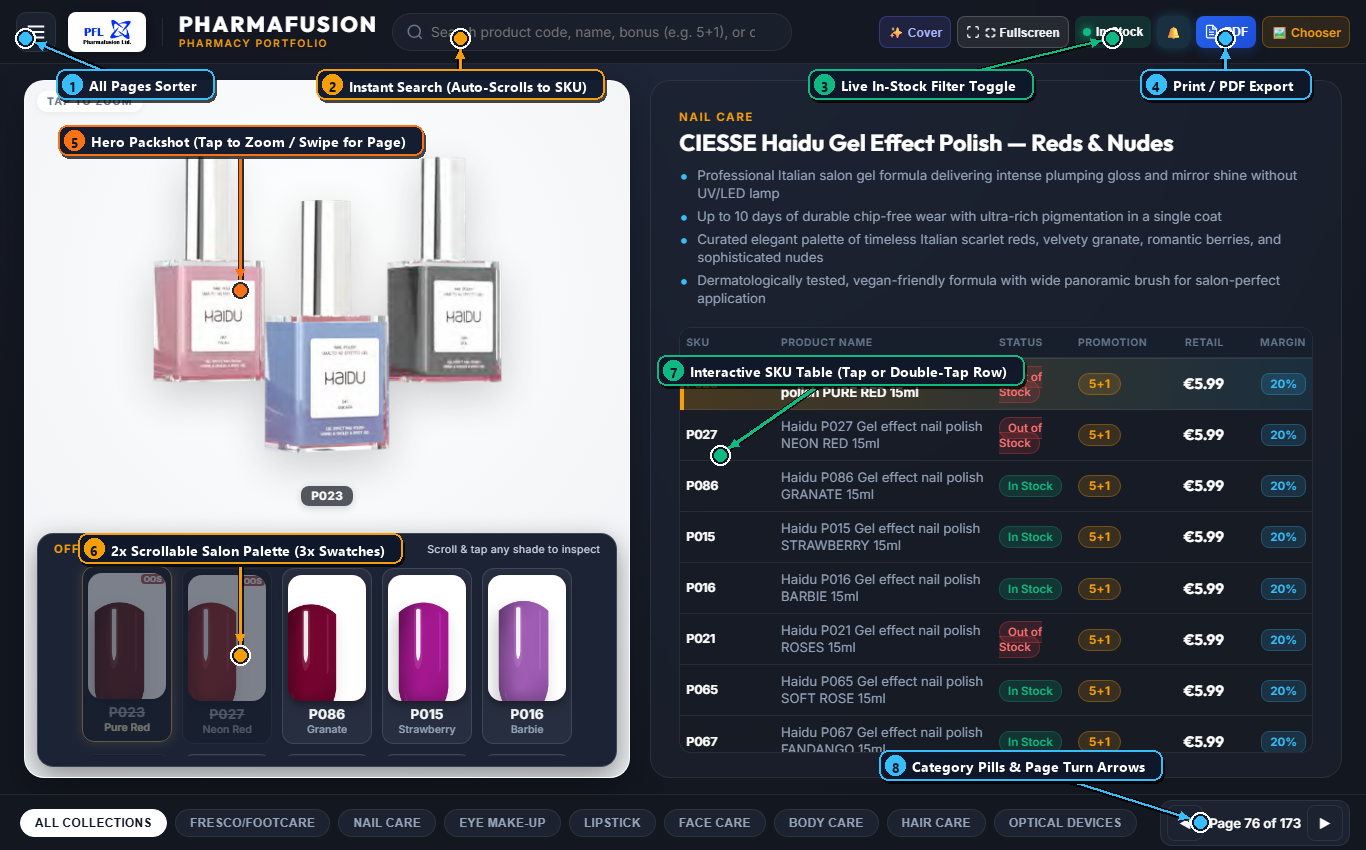
| Callout | Control / Area | Function & Hidden Power Features |
|---|---|---|
| 1 | ☰ All Pages Sorter | Opens a full-screen thumbnail grid of all pages so you can visually jump to any page in one tap. |
| 2 | 🔍 Instant Search Box | Type any SKU code (e.g. P023, F-02120-01), shade name, or keyword. Hidden Power Feature: On multi-product pages, searching a product automatically selects that item, spotlights its packshot/swatch, highlights its table row in gold, and scrolls the table so the matched row is centered! |
| 3 | ● In Stock Toggle | Filters the catalogue in real time to show only products with live stock > 0, hiding out-of-stock rows and pages during customer presentations. |
| 4 | 📄 PDF / Print & Cover | ✨ Cover returns to the Splash Screen; ⛶ Fullscreen toggles full-screen mode; 📄 PDF formats the page for wireless printing or PDF export. |
| 5 | Hero Packshot Stage | Single Tap the hero packshot to open the Floating Zoom Spotlight Modal. Swipe Left/Right across the stage to turn to the next/previous catalogue page. On multi-product pages with distinct items, use the top-right ⊞ Show All / 🔍 Spotlight button to switch between grid view and single spotlight carousel. |
| 6 | 2× Scrollable Salon Shade Palette (3× Swatches) | Appears on Haidu Gel Effect Nail Polish (000383, 000384) and Pura Permanent Hair Dye (000356). Features 3× oversized nail/hair swatches (78×126px) in a 2× tall vertically scrollable tray. Single Tap any swatch to select it and scroll the table to that SKU; Double Tap to open the Zoom Modal. Out-of-stock shades are automatically ghosted with an OOS badge. |
| 7 | Interactive Commercial SKU Table | Displays SKU, Product Name, Live Stock Badge (In Stock / Out of Stock), Promotion (5+1), Retail Price (incl. 18% VAT), and Nominal Margin (20%). Single Tap a row to spotlight that product; Double Tap a row to open the Zoom & Margin Calculator Modal. |
| 8 | Category Pills & Page Turn Arrows | Tap any bottom category pill to switch chapters, or tap ◀ / ▶ (or swipe left/right on the table) to turn pages. |
1.3 Floating Inspection Spotlight Modal & Margin Calculator
Tapping any hero packshot or double-tapping any table row / shade swatch opens the Floating Inspection Spotlight Modal:
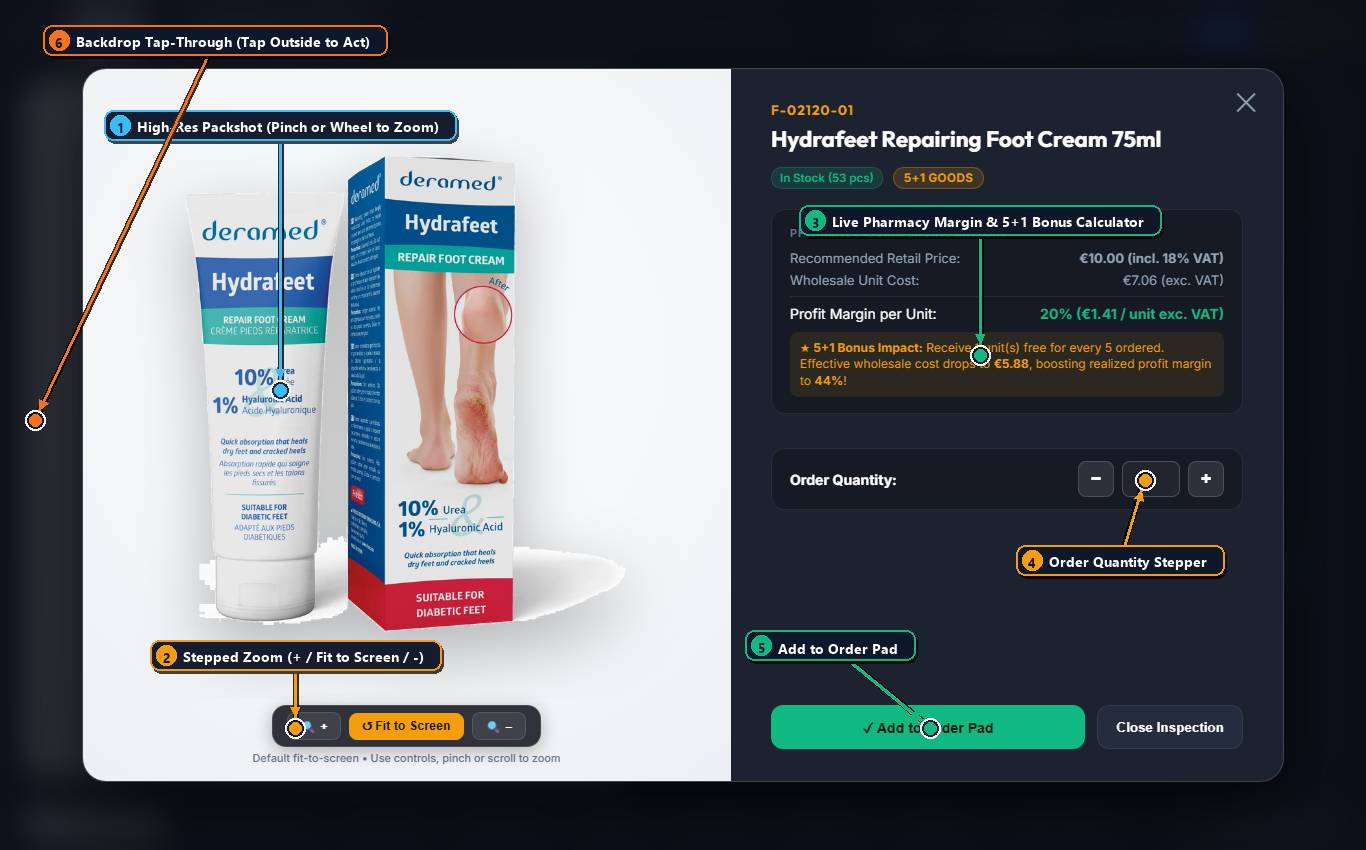
| Callout | Control / Area | Function & Hidden Power Features |
|---|---|---|
| 1 | High-Res Zoomable Viewport | Pinch with two fingers on the tablet (or scroll the mouse wheel on laptop) to zoom up to 4× and drag with one finger to pan across fine packaging text. |
| 2 | Stepped Zoom Bar | Tap 🔍 + to zoom in, ↺ Fit to Screen to reset, or 🔍 − to zoom out. |
| 3 | Live Pharmacy Commercial Margin Calculator | Displays the Recommended Retail Price (incl. 18% VAT), Wholesale Unit Cost (exc. VAT), Profit Margin per Unit (20%), and the ★ 5+1 Bonus Impact box showing how ordering 5+1 boosts the pharmacist's realized profit margin to 44% – 52.5%. |
| 4 | Order Quantity Stepper | Tap − / + or type a quantity to prepare the order line. |
| 5 | ✓ Add to Order Pad | Adds the selected SKU and quantity to the order pad. |
| 6 | Backdrop Tap-Through (Hidden Power Feature) | You do not need to tap ✕ first to click something behind the modal. Tapping anywhere outside the modal card (e.g. directly on another SKU row, a shade chip, or the Next Page arrow) closes the modal and executes that underlying click immediately in one tap. |
2.1 Home Server & 1-Click Offline Synchronisation
Tapping 📶 Server on the Splash Screen opens the expanded Home Server & Wi-Fi Sync Dashboard:
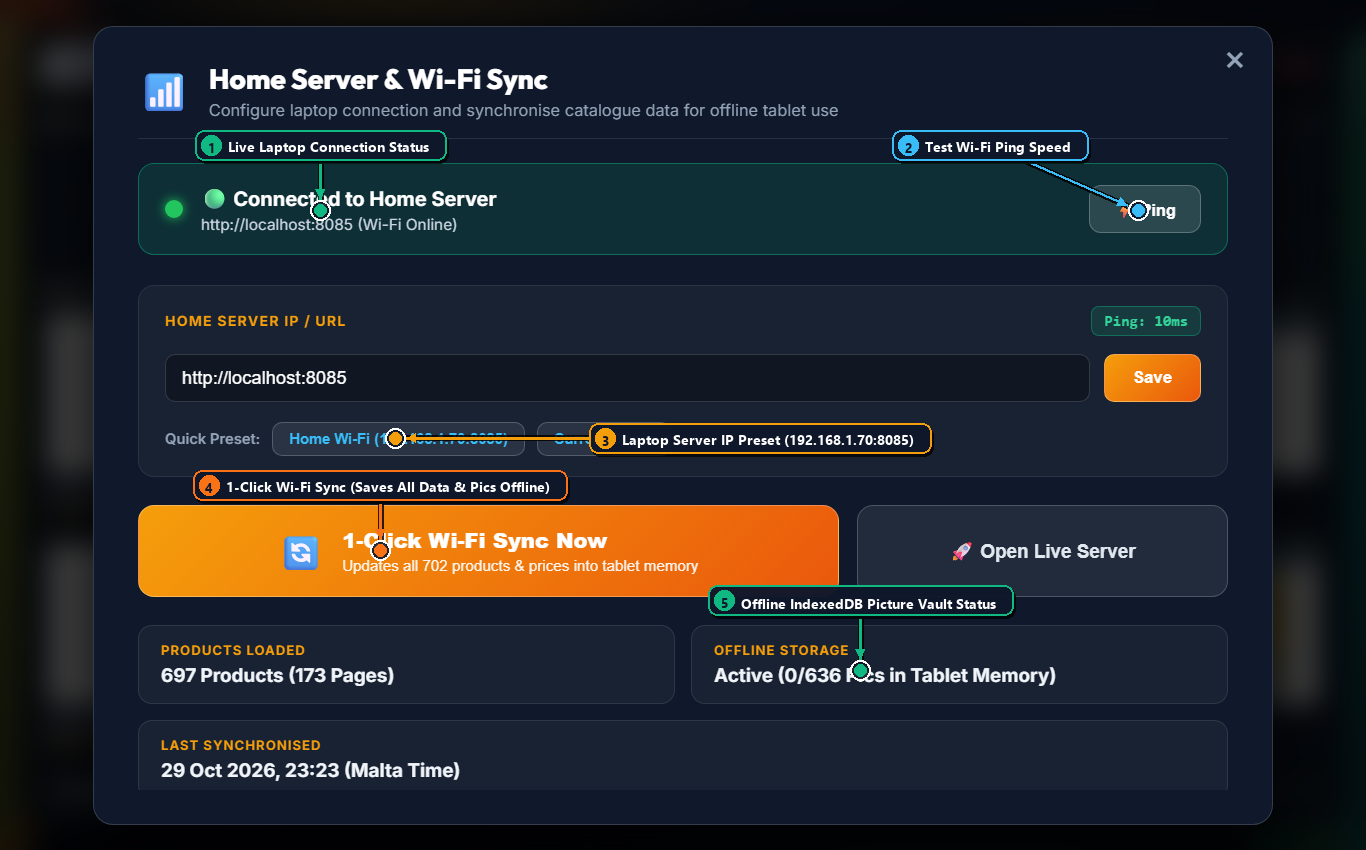
| Callout | Control / Indicator | How It Works |
|---|---|---|
| 1 | Live Laptop Connection Banner | Shows green (Connected to Home Server) when your laptop is running Start_Catalogue_Server.bat on local Wi-Fi, or amber (Offline Mode Active) when you are visiting pharmacies with the laptop off. |
| 2 | ⚡ Ping Button | Tests live Wi-Fi response time in milliseconds between the tablet and laptop. |
| 3 | Home Wi-Fi Preset (192.168.1.70:8085) | One-tap preset for your laptop's local IP address. |
| 4 | 🔄 1-Click Wi-Fi Sync Now | Triggers a live 0.28s Visual FoxPro ERP extraction on the laptop, saves all 697 products & 173 pages into tablet localStorage, and downloads all high-resolution packshots into the tablet's persistent IndexedDB vault. |
| 5 | Offline Storage Counter | Confirms how many product pictures are permanently stored inside the tablet's offline IndexedDB memory (`pharmafusion_offline_vault`). |
One-Time Setup for Any Future Android Tablet
- Double-click
Start_Catalogue_Server.baton the laptop. - Open Chrome on the new tablet and paste into the address bar:
chrome://flags/#unsafely-treat-insecure-origin-as-secure
- Enter
http://192.168.1.70:8085into the text box, set the dropdown to Enabled, and tap Relaunch (this allows Chrome's offline Service Worker to run over local HTTP Wi-Fi). - Open
http://192.168.1.70:8085, tap the Chrome ⋮ menu ➔ Add to Home screen, then tap 📶 Server ➔ 🔄 1-Click Wi-Fi Sync Now.
3.1 Product CRUD, Packshot Standardization & Antigravity Workflows
1. Live Stock & Price Sync (sync_live_vfp_to_catalogue.py)
Whenever serve.py starts or a tablet taps 1-Click Wi-Fi Sync Now, sync_live_vfp_to_catalogue.py reads your Visual FoxPro tables in binary in 0.28 seconds:
- Calculates live stock:
Delivered Purchases (purchases.dbf + purchase_line_items.dbf) − Invoiced Sales (invoices.dbf + orditems.dbf) − Consigned. - Writes the live stock into
UNITS_IN_SinsideC:\nirvana_ent\data\products.dbf. - Updates
stock,in_stock,price(REC_SELLIN),cost(RSP × 0.80), andbonus(SPEC_OFFER) intablet_app/catalogue_data.json.
2. Adding, Updating, or Discontinuing Products (CRUD)
- Create (Add Product): Add the product in VFP (
C:\nirvana_ent\data\products.dbf) with itsPC_IDlinking toproduct_catalogue.dbf, place its800×800transparent PNG intablet_app/images/andC:\nirvana_ent\product_images_small\, and add the product entry totablet_app/catalogue_data.json. - Update (Price / Offer / Stock): Edit
REC_SELLINorSPEC_OFFERin VFPproducts.dbfand tap 1-Click Wi-Fi Sync Now on the tablet. - Delete (Discontinue Product / Page): Set
DISCONTINU = .T.inC:\nirvana_ent\data\products.dbf, setHIDE_PAGE = .T.inproduct_catalogue.dbfif the page has no remaining active products, and remove the item/page fromtablet_app/catalogue_data.json.
3. The 800×800 RGBA Lanczos Packshot Scraping & Standardization Pipeline
- PDF Extraction (
PyMuPDF/pymupdf): Extracts embedded product images and native soft-masks (smask) directly from supplier PDFs (KISS, Ciesse EGO, Haidu, Pura, Relaxperience, Fresco). - Web & CDN Scraping (
tools/): Uses targeted harvesters (download_fresco_targeted.py,find_ciesse_brand_pdfs.py,download_alphanova_packshots.py,download_macks_packshots.py) to pull high-res packshots from supplier CDNs. - 800×800 Studio Standardization (
tools/standardize_final_6.py): Removes outer white backgrounds via corner flood-fill or alpha thresholding, crops to the tight product bounding box, resizes withImage.Resampling.LANCZOSso the longest dimension is740px, centers on an800×800transparent RGBA PNG canvas, and saves to bothtablet_app/images/andC:\nirvana_ent\product_images_small\. - Pushing Replaced Images to Tablets: Add replaced image paths to
FORCE_REFRESH_IMAGESand bumpUPDATED_IMAGE_PATCH_IDintablet_app/app.jsso tablets overwrite those specific cached blobs inIndexedDBin under 1 second on next sync.
4. Copy-Paste Prompt Recipes for Antigravity
To perform any catalogue update automatically in future sessions, simply paste one of these prompts into Antigravity:
Replace / Scrape a Product Image:
"Product <CODE> (<NAME>) on page <PAGE_ID> has the wrong picture. Find the official packshot from the supplier catalogue PDF or web, standardize it to an 800×800 transparent PNG using our Lanczos pipeline, save it to tablet_app/images/ and C:\nirvana_ent\product_images_small\, and bump UPDATED_IMAGE_PATCH_ID in app.js so the tablets refresh it on sync."
"Product <CODE> (<NAME>) on page <PAGE_ID> has the wrong picture. Find the official packshot from the supplier catalogue PDF or web, standardize it to an 800×800 transparent PNG using our Lanczos pipeline, save it to tablet_app/images/ and C:\nirvana_ent\product_images_small\, and bump UPDATED_IMAGE_PATCH_ID in app.js so the tablets refresh it on sync."
Discontinue Products:
"The following products are discontinued: <list product names or codes>. Mark them DISCONTINU = .T. in C:\nirvana_ent\data\products.dbf, hide their page in product_catalogue.dbf if no products remain on that page, and remove them from tablet_app/catalogue_data.json."
"The following products are discontinued: <list product names or codes>. Mark them DISCONTINU = .T. in C:\nirvana_ent\data\products.dbf, hide their page in product_catalogue.dbf if no products remain on that page, and remove them from tablet_app/catalogue_data.json."
Add New Products from Visual FoxPro:
"I have added new products in Visual FoxPro (products.dbf) under supplier <SUPPLIER> / page <PC_ID>. Please read products.dbf, scrape and standardize their 800×800 packshot images from the supplier catalogue/website into tablet_app/images/ and C:\nirvana_ent\product_images_small\, add them to tablet_app/catalogue_data.json, and run sync_live_vfp_to_catalogue.py."
"I have added new products in Visual FoxPro (products.dbf) under supplier <SUPPLIER> / page <PC_ID>. Please read products.dbf, scrape and standardize their 800×800 packshot images from the supplier catalogue/website into tablet_app/images/ and C:\nirvana_ent\product_images_small\, add them to tablet_app/catalogue_data.json, and run sync_live_vfp_to_catalogue.py."